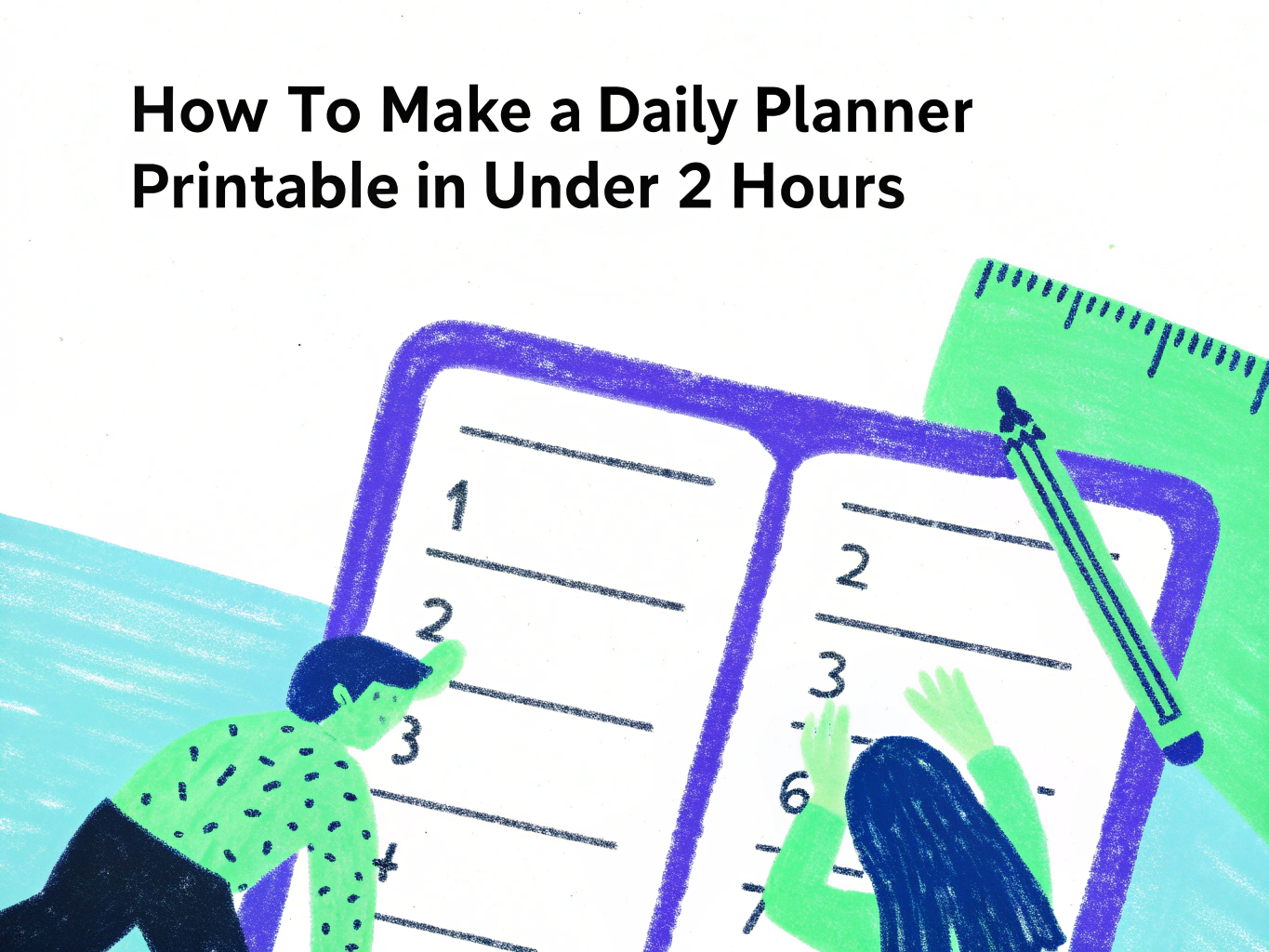
How to Make a Daily Planner Printable in Under 2 Hours
Making a daily planner printable is one of the fastest digital products you can build and list on Etsy. Unlike a full yearly planner with 100-plus pages or a digital planner with hyperlinks, a daily planner printable is typically one to four pages, designed once, and sold as an instant download. Two hours is a realistic timeline if you go in with a clear plan.
Most beginners lose that time to indecision, second-guessing the layout, changing the color palette halfway through, or starting over after choosing the wrong canvas size. This guide eliminates that wasted time by giving you the exact decisions to make before you open any design tool.
What a Daily Planner Printable Actually Is
A daily planner printable is a PDF file a buyer downloads, prints at home on standard paper, and writes on by hand. It is not a digital planner for iPad use. It is not a Canva template the buyer edits. It is a static, designed, print-ready file that functions like a physical planner page the buyer can use every single day.
The most common formats are a single daily planning page used across multiple printed copies, a two-page daily spread with a morning and evening section, and a dated or undated full-day schedule broken into time blocks. Undated versions always outsell dated versions because they have no expiration and sell consistently all year round.
The Sections That Actually Sell
Before touching any design tool, decide exactly what sections your planner page will include. This decision determines the entire layout. Guessing as you go adds an hour of unnecessary redesign work.
Looking at what top-selling daily planner printables on Etsy include consistently right now, the sections buyers use and review most positively are a date or day header, a top three priorities section, a time-blocked schedule running from morning to evening in 30-minute or one-hour increments, a to-do list section separate from the scheduled blocks, a notes or brain dump area, a water and habit tracking section, a gratitude or affirmation line, and an end-of-day reflection space.
You do not need all of these on a single page. In fact, trying to fit all of them onto one page creates a cramped layout that buyers find overwhelming and genuinely hard to use. Pick the sections that serve your specific buyer best and design them with enough writing space to be functional. A beautiful planner that has no room to write anything is a printable that generates one-star reviews.
For a beginner first product, a focused single page with a date header, a top three priorities box, a time-blocked schedule, a to-do list, and a notes section is complete enough to sell and simple enough to design well in under two hours.
Choose Your Tool Before You Start the Clock
Two tools genuinely work well for building daily planner printables. Knowing which one to use before you start saves significant time.
Canva is the most accessible option and works well for daily planner printables because a single page layout is simple enough that Canva’s design constraints do not become a problem. Use Canva if you are designing a one to four page product, you want to stay on the free plan, or you are building your first product and want the fastest path to a finished file.
Planify is a dedicated planner creation tool that multiple experienced Etsy planner sellers prefer over Canva specifically for planner work. It offers planner-specific templates, automatic page resizing across multiple paper sizes with a single click, and layouts built specifically for the functional structure a planner requires. It takes slightly longer to learn but saves significant time once you are building planner products regularly. If you plan to make planners a core part of your product catalogue, Planify is worth exploring after your first product is done.
For a first daily planner printable built in under two hours, use Canva.
Step 1: Set Up Your Canvas — 5 Minutes
Open Canva and create a new design with custom dimensions. Set the size to 8.5 x 11 inches for US Letter or 210 x 297mm for A4.
One important practical note here. If you want to offer both sizes — which top sellers consistently do because it removes a reason for international buyers to choose a competitor — design at A4 first and duplicate it to US Letter. A4 is slightly taller and narrower than US Letter, so designing at A4 and resizing down to US Letter results in fewer layout adjustments than going the other direction. Plan to create both versions before you export anything.
Set your background color immediately. Decide whether you want a white, cream, or lightly colored background and apply it now. Changing the background after you have built the layout forces you to check every element for contrast again. Make this decision once at the start.
Step 2: Build Your Design System — 10 Minutes
Before placing a single element, establish the design system that runs across your entire planner. This is the step most beginners skip and it is why their final product looks like it was designed in separate sessions.
Choose two fonts only. One slightly characterful font for your header and section titles and one very clean, readable font for labels, time slots, and body text fields. Open Canva’s font menu and lock these choices before you start adding any text. The clean body font is the more important of the two — buyers are going to write near and around every text element on this page and a font that competes with handwriting is a poor choice for a planner.
Choose your color palette of three to four colors. A neutral background, a slightly darker neutral or muted tone for section backgrounds and dividers, one accent color for headers and key elements, and black or very dark gray for all body text. Apply these four colors and nothing else across the entire design.
Consistency here is what makes a planner look professionally designed rather than assembled. Buyers compare listings visually before they read a word and a cohesive, deliberate color palette is one of the clearest signals of quality.
Step 3: Build Your Layout — 45 Minutes
This is the core design work. Work through each section in order from top to bottom, placing elements and adjusting spacing as you go.
Start with your header section at the top of the page. Add a date field or day label. Keep the header simple and clean — it sets the visual tone for the rest of the page. A decorative, overcrowded header is one of the most common beginner design mistakes on planner pages.
Build your time-blocked schedule section next because it is the most structurally complex element. Create a narrow column for time labels on the left side and a wider column for writing on the right. Use Canva’s table element or a series of horizontal lines with consistent spacing to build the time slots. Rows should be at minimum 18 to 20 pixels tall to give buyers enough writing room when printed. Test this by actually printing a draft page before finalizing — this is where many beginners discover their rows are too small to write in comfortably.
Add your priorities, to-do list, and notes sections below or beside the schedule depending on your layout choice. Use lightly shaded rectangles or bordered boxes to visually distinguish each section from the others. Buyers need to be able to scan the page and immediately know what each area is for without reading the label. Visual separation does that work more effectively than labels alone.
Leave enough white space throughout the design. Planners that feel too full or too busy are one of the most consistent complaints in negative planner reviews. A page that looks slightly sparse on screen will feel perfectly proportioned when a buyer is actually writing on a printed version.
Step 4: Add Final Touches — 15 Minutes
Once your layout is complete, add a few finishing details that elevate the overall feel of the page without adding design complexity.
A small logo or shop name in a light gray at the bottom of the page is a professional touch that also works as subtle branding when buyers share their planner setups on social media. Use a weight and color light enough that it does not compete with any of the content sections.
Small decorative elements like a simple botanical illustration, a minimal geometric border, or a subtle texture can add personality to an otherwise functional design. Keep these intentional and minimal. One well-placed decorative element looks considered. Four unrelated decorative elements scattered across the page look cluttered.
Check every piece of text for consistent font usage, consistent sizing, and correct spelling. Typos in planner printables generate negative reviews reliably because buyers notice them every single day they use the page.
Step 5: Export Correctly — 5 Minutes
Click Share in Canva, then Download, then PDF Print. PDF Print exports at 300 DPI resolution which is essential for any product a buyer will physically print. PDF Standard is for screen use only and produces noticeably lower quality output when printed, which generates negative reviews from buyers who notice the blurry text and lines.
Export your US Letter version and your A4 version as separate files. Name both files clearly. Something like DailyPlanner-USLetter.pdf and DailyPlanner-A4.pdf makes it immediately clear to buyers which file is which when they look at their download folder.
Print both versions yourself on a standard home printer before doing anything else. Check that all text is crisp, lines are clean, and most importantly that every section has enough physical writing space. A time block that looks fine on your screen may be too narrow to write in when printed at actual size. Fix any spacing issues before you list the product.
Step 6: Create Your Mockup Images — 25 Minutes
Your mockup images are the entire product experience for a buyer before they purchase. A well-designed planner with weak mockup images consistently loses sales to a less well-designed planner with great mockups. That is a frustrating truth but a useful one to know.
Go back into Canva and search for desk flat lay mockup templates or notebook mockup templates. Place your exported planner page image into the mockup to show what the printed product looks like in a real desk setting. Create three to five mockup images for your listing.
Your first image should show the full planner page clearly and cleanly in a styled flat lay setting. Your second image should show the page filled in with sample handwritten content — not left blank — so buyers can visualize using it. A planner page shown filled in converts significantly better than the same page shown completely empty. Your third image should show a close-up of one of the key sections to demonstrate the design quality and writing space. If you are offering both US Letter and A4 versions, one image should confirm that both sizes are included.
Step 7: List on Etsy — 15 Minutes
Your listing title should lead with the most specific keyword phrase your buyer would type into search. Something like “Daily Planner Printable Undated Daily Schedule PDF US Letter A4 Instant Download” covers the core keywords without padding.
In your description, open with the problem your planner solves. A buyer searching for a daily planner printable is typically trying to add structure to their day, reduce decision fatigue in the morning, or start a planning habit they have been putting off. Speak to that motivation before listing the features.
List every section included, confirm that both paper sizes are included, and clarify that this is a printable PDF for home printing rather than a digital planner for iPad use. The distinction matters because buyers searching for printables and buyers searching for digital planners are completely different audiences and occasionally purchase the wrong product by mistake. Clearing this up preemptively saves you customer service messages and refund requests.
Use all 13 Etsy tags. Mix broad terms like “daily planner printable” and “printable planner PDF” with specific phrases like “undated daily schedule,” “daily time blocking printable,” and “minimalist daily planner.” Tags are independent search entry points and using all 13 is non-negotiable.
Price a single daily planner page in the $3 to $7 range. A two to four page daily planning set with a morning page, evening reflection page, and bonus habit tracker sells well in the $5 to $10 range. Price confidently based on what comparable top-selling listings charge, not based on the cheapest listings you can find.
The Mistake That Wastes the Most Time
The single most common reason beginners spend four or five hours on a product that should take two is redesigning mid-build. Starting with a color palette they change halfway through, choosing a layout that does not fit all their planned sections, or switching fonts after placing twenty text elements all add significant unplanned time.
Make every decision before you start designing. Niche and buyer, page sections, canvas size, color palette, font pairing. Ten minutes of decisions upfront saves sixty minutes of redesign later. That is the real secret to making a daily planner printable in under two hours.
Frequently Asked Questions
Can I sell a daily planner printable made entirely with free Canva?
Yes. Everything described in this guide is achievable using a free Canva account. Free plan elements, free fonts, and the standard download options are all you need. If you use Canva Pro elements in your design, buyers who purchase your printable will receive a static PDF and will not need a Canva account to use it, so Pro elements in printables do not create the same editability issue they create in Canva templates. The commercial use licensing for free Canva elements covers selling finished PDF products you create with them.
Should I offer color variations of the same planner layout?
Yes and it is a low-effort way to multiply your listings without rebuilding your design. Once your layout is finished, duplicate the Canva file, swap the accent color and header color to a different palette, and export a second version. Each color variation can be its own Etsy listing or offered together as a bundle. Multiple color options in one listing also gives buyers a reason to favorite the listing and come back, which feeds positively into Etsy’s engagement signals.
Do I need to mention Happy Planner sizing in my listing?
You can mention specific dimensions like 7 x 9.25 inches if your planner is sized for a specific binder system but you should never mention Happy Planner by name in your listings. Mentioning specific brand names of planner systems you have not licensed is a copyright issue that can result in your listing being taken down. Reference the exact dimensions instead and buyers who use those systems will understand the compatibility without the brand name.
What is the best way to handle buyers who say the planner printed incorrectly?
Include a short note in your delivery file recommending that buyers select Fit to Page in their printer settings and print a single test page before printing a full set. Most printing issues come from default printer margin settings rather than problems with your file. A brief instruction note that pre-empts this question prevents the majority of printing complaints and demonstrates a level of care that contributes to positive reviews.
Final Thoughts
A daily planner printable is one of the most achievable first digital products you can build and list in a single focused session. The two-hour timeline is realistic when you make your design decisions before you open Canva, work through the steps in order without redesigning mid-build, and export and test a printed version before you create your mockups.
The planner you build in two hours today can be selling on Etsy tonight and still generating income six months from now without any additional work. That compounding return on a single focused session is what makes printable planners one of the most enduringly practical digital products for beginner sellers.

- 25+ Profitable Print on Demand Products to Sell - July 25, 2026
- 24+ Beginner Friendly Print on Demand Business Ideas - July 15, 2026
- 20+ Low Risk Print on Demand Products - July 5, 2026